
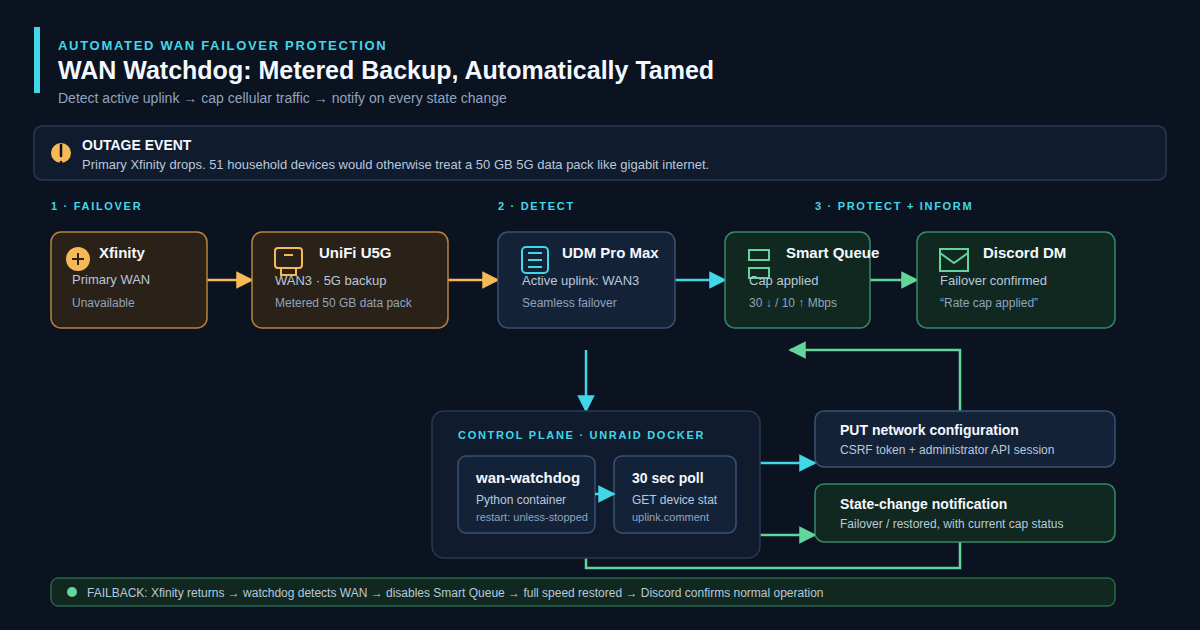
Last Friday, Comcast went down. I don’t know why. Comcast doesn’t really explain itself. One moment there was internet; the next moment there wasn’t, in the proud tradition of cable ISPs everywhere. The UniFi Dream Machine Pro Max did exactly what it was supposed to do: it silently failed over to my backup WAN, a UniFi U5G 5G backup device with a prepaid eSIM data pack.
That is great. That is the whole point of having a backup WAN.
The problem is that my network apparently treats backup cellular data with the same respect it treats a gigabit fiber connection, which is to say none at all. My home network has 51 devices on it, and none of them had any idea they were burning through a $149, 50GB eSIM data pack.
The Numbers Are Brutal
I have syslog flowing off my network gear into Loki, so I can tell you exactly how this unfolded, because the U5G logs its data usage to syslog every hour like clockwork.
Here’s how the carnage looked:
| Time (Local) | Total Usage | Change |
|---|---|---|
| May 30, 9:04 AM | 9.0 MB | Normal standby |
| May 30, 9:17 AM | 66.5 MB | Failover begins |
| May 30, 10:17 AM | 191.5 MB | +125 MB/hr |
| May 30, 11:17 AM | 316.3 MB | +125 MB/hr |
| May 30, 3:17 PM | 690.7 MB | Still climbing |
| May 30, 3:17 PM → 4:17 PM | 0.7 GB → 7.0 GB | 💀 Something woke up |
| May 30, 4:17 PM → 5:17 PM | 7.0 GB → 17.7 GB | 10+ GB/hr |
| May 30, 5:17 PM → 6:17 PM | 17.7 GB → 28.9 GB | 11+ GB/hr |
| May 30, 6:17 PM → 7:17 PM | 28.9 GB → 30.2 GB | Starts tapering |
| May 31, 11:17 PM | 53.6 GB | Final tally |
That spike between 3:17 PM and 6:17 PM is something else. Three hours of sustained 10+ GB/hr. That’s close to 300 Mbps average sustained throughput on a cellular backup link that was supposed to be, you know, a backup.
Here is the thing though: none of this is unusual usage for our household. Between media files downloading, streaming, and general day-to-day activity across 51 devices, we routinely push 4 to 5TB through Xfinity in a month. On a gigabit fiber connection that is completely fine and nobody thinks twice about it. On a 50GB prepaid eSIM data pack, it is catastrophic. The network failed over silently, nobody had any idea anything had changed, and everything just kept running at full speed like it always does.
To be fair, UniFi does send a notification when a WAN failover occurs. I saw it. I glanced at it and moved on, because a small push notification does not really convey the urgency of “your metered backup connection is now carrying your entire household.” What I actually needed was a direct message that told me which connection I was on, what speed limit had just been applied, and what it would cost me if I ignored it. A targeted Discord DM with that context is a fundamentally different thing than a generic system alert, and it turns out that difference matters quite a bit when $149 is on the line.
By the time the eSIM data pack ran out, we’d burned through 53.6 GB. The pack was 50 GB. The carrier helpfully provided an overage data allotment at a rate that I’d rather not think about too hard. Total damage: somewhere north of $149.
Comcast was back up by morning. The network failed back over gracefully. Nobody noticed anything was wrong except me, sitting here looking at a Loki dashboard wondering what happened.
Why There Was No Safety Net
The UniFi gear is genuinely excellent at failover. It detected the outage, cut over to WAN3 in seconds, and restored connectivity without dropping a single active session. That’s impressive and it’s exactly what you want from a router. What it doesn’t have is any native concept of “apply a speed limit when this specific WAN is active.”
You can set WAN rate limits in UniFi’s Traffic Management. You can enable Smart Queue (HTB shaping) on any WAN interface. What you can’t do is tell it “enable these settings only when WAN3 is the active uplink.” That’s a static configuration, not a conditional one. The router doesn’t have a “budget mode” toggle that fires automatically on failover.
So the network failed over, every device on the LAN kept doing exactly what it was doing at full speed, and 53 GB disappeared into the ether over about 18 hours.
The Fix: Automated Failover Detection and Rate Capping
The solution is to build the conditional logic that UniFi doesn’t provide natively. The UDMP exposes a full REST API, and one of the things it reports is which WAN interface is currently the active uplink. You can also push network configuration changes to it via PUT requests. Those two things together are everything you need.
Here’s the architecture:
wan-watchdog (Docker on Unraid)
  ↓ polls UDMP API every 30 seconds
  ↓ reads uplink.comment on the UDM Pro Max device
  ↓ "WAN"  → Xfinity is active, no cap needed
  ↓ "WAN3" → 5G backup active, apply rate limit
  → UDMP: PUT networkconf with wan_smartq_enabled + wan_provider_capabilities
  → Discord: DM notification on state change
The watchdog is a small Python container that runs on Unraid with --restart unless-stopped. It authenticates to the UDMP, polls the device stat endpoint, and compares the current active WAN to the previous state. On a state change it either applies or removes a Smart Queue configuration on the WAN3 interface.
The rate cap itself is configured via two fields on the WAN3 network config object:
conf["wan_provider_capabilities"] = {
    "upload_kilobits_per_second":   10000,   # 10 Mbps up
    "download_kilobits_per_second": 30000,   # 30 Mbps down
}
conf["wan_smartq_enabled"] = True
30 Mbps down is plenty for everything a household actually needs. Browsing works. Video calls work. Streaming in HD works if you’re not doing it on 12 devices simultaneously. It is the background stuff — backup jobs, app updates, Plex metadata fetching, NAS sync tasks — that does not need to run at full speed and absolutely will if you let it.
On failback to primary WAN, the watchdog sets wan_smartq_enabled = False and removes the provider capabilities, restoring full-speed operation. The network does not notice. The users do not notice. I get a Discord DM either way.
One Gotcha: CSRF Tokens
UniFi’s API requires a CSRF token on all write operations. You get it from the login response header (X-Csrf-Token) and need to include it on every subsequent PUT or POST. The cookie alone is not enough, and if you miss it you get a 403 that looks exactly like a permissions problem. I spent more time on this than I’d like to admit.
Also, the local service account I use for API access needed its Network permission upgraded from Viewer to Administrator to allow config writes. Read operations work on the readonly account just fine; write operations do not. Obvious in retrospect.
def udmp_login():
    s = requests.Session()
    s.verify = False
    r = s.post(f"{BASE}/api/auth/login", json={"username": USER, "password": PASS})
    r.raise_for_status()
    csrf = r.headers.get("X-Csrf-Token", "")
    if csrf:
        s.headers.update({"X-Csrf-Token": csrf})
    return s
That’s it. One extra header. Costs half an afternoon to figure out if you don’t know to look for it.
What the Discord Notifications Look Like
When Xfinity goes down and WAN3 kicks in, I get this:
📡 WAN Failover — switched to WAN3 (5G backup)
✅ Rate cap applied: 30 Mbps down / 10 Mbps up
Watching for Xfinity to recover…
And when it comes back:
✅ WAN Restored — back on Xfinity (primary)
✅ Rate cap removed — running at full speed.
This is the difference between knowing something happened and knowing what to do about it. The message tells me which connection is active, confirms the speed cap was applied successfully, and makes it obvious when things are back to normal. The notifications come through an existing bot so there is no new infrastructure needed on the Discord side.
Running It
The container runs on Unraid with a persistent env file at /mnt/user/appdata/wan-watchdog/watchdog.env so it survives reboots. Docker’s --restart unless-stopped handles everything else. Total resource footprint is negligible — it’s a Python process that wakes up every 30 seconds, fires off two HTTP requests, and goes back to sleep.
docker run -d \
  --name wan-watchdog \
  --restart unless-stopped \
  --network host \
  --env-file /mnt/user/appdata/wan-watchdog/watchdog.env \
  wan-watchdog:latest
The code is in version control alongside everything else in the homelab config repo. If Unraid dies and I rebuild, this comes back up with everything else.
The Code
The whole project is about 10KB of Python plus a tiny Dockerfile and a compose file. Nothing fancy — just a polling loop, a couple of API calls, and a Discord bot post. Below is everything you need to drop this on your own Unraid box (or any Docker host that can reach your UDMP). Replace the placeholders (UDMP_PASS, DISCORD_TOKEN, DISCORD_CHANNEL, and the WAN3_NET_ID) with your own values.
Dockerfile
FROM python:3.12-slim

WORKDIR /app

RUN pip install --no-cache-dir requests

COPY watchdog.py .

CMD ["python3", "-u", "watchdog.py"]
docker-compose.yml
services:
  wan-watchdog:
    build: .
    container_name: wan-watchdog
    restart: unless-stopped
    network_mode: host          # needs access to 192.168.1.1
    environment:
      # ── UDMP ─────────────────────────────────────────────────
      UDMP_HOST:     "192.168.1.1"
      UDMP_USER:     "YOUR_UDMP_USER"   # local UDMP admin (needs write access)
      UDMP_PASS:     "REPLACE_ME"   # ← set your UDMP admin password here
      UDMP_SITE:     "default"

      # WAN3 network config ID (UniFi 5G A) — don't change unless UDMP was reset
      WAN3_NET_ID:   "6a1898ea62a4b3b4558accec"

      # ── Rate cap ──────────────────────────────────────────────
      CAP_DOWN_KBPS: "30000"        # 30 Mbps down
      CAP_UP_KBPS:   "10000"        # 10 Mbps up

      # ── Polling ───────────────────────────────────────────────
      POLL_INTERVAL: "30"           # seconds between checks

      # ── Discord ───────────────────────────────────────────────
      DISCORD_TOKEN:   "REPLACE_ME" # ← Discord bot token (or leave blank to skip)
      DISCORD_CHANNEL: "YOUR_DISCORD_CHANNEL_ID"  # your Discord channel ID
The WAN3_NET_ID is the UniFi network configuration ID for your backup WAN. To find yours, log in to the UDMP API once and list the network configs:
curl -sk -b /tmp/ucookies.txt \
  https://192.168.1.1/proxy/network/api/s/default/rest/networkconf \
  | python3 -c "import sys,json; d=json.load(sys.stdin); \
    [print(n['_id'], n['name']) for n in d['data'] \
     if n.get('wan_networkgroup')=='WAN3']"
watchdog.py
The whole watchdog lives in a single file. Login, poll, compare, react, notify. There is no database, no state file — the only state is the in-memory boolean of which WAN was active on the last poll. If the container restarts, the first poll re-establishes ground truth.
#!/usr/bin/env python3
"""
wan-watchdog — UniFi WAN3 failover rate limiter
Watches for WAN3 (5G backup) becoming the active uplink.
When active: enables Smart Queue on WAN3 capped at 30 Mbps.
When primary WAN1 (Xfinity) recovers: removes the cap.
Sends Discord DM on each state change.
"""

import os
import time
import json
import logging
import requests
import urllib3

urllib3.disable_warnings(urllib3.exceptions.InsecureRequestWarning)

# ── Config ────────────────────────────────────────────────────────────────────
UDMP_HOST         = os.environ.get("UDMP_HOST",     "192.168.1.1")
UDMP_USER         = os.environ.get("UDMP_USER",     "YOUR_UDMP_USER")  # needs write access
UDMP_PASS         = os.environ.get("UDMP_PASS",     "")            # set in docker-compose env

SITE              = os.environ.get("UDMP_SITE",     "default")
WAN3_NET_ID       = os.environ.get("WAN3_NET_ID",   "6a1898ea62a4b3b4558accec")

# Rate cap to apply when on WAN3 (kilobits/sec)
CAP_DOWN_KBPS     = int(os.environ.get("CAP_DOWN_KBPS", 30000))   # 30 Mbps down
CAP_UP_KBPS       = int(os.environ.get("CAP_UP_KBPS",   10000))   # 10 Mbps up

# How often to poll (seconds)
POLL_INTERVAL     = int(os.environ.get("POLL_INTERVAL", 30))

# Discord — notify via OpenClaw webhook or direct bot token
DISCORD_TOKEN     = os.environ.get("DISCORD_TOKEN",   "")
DISCORD_CHANNEL   = os.environ.get("DISCORD_CHANNEL", "YOUR_DISCORD_CHANNEL_ID")  # your Discord channel ID

# ── Logging ───────────────────────────────────────────────────────────────────
logging.basicConfig(
    level=logging.INFO,
    format="%(asctime)s [%(levelname)s] %(message)s",
    datefmt="%Y-%m-%d %H:%M:%S",
)
log = logging.getLogger("wan-watchdog")

# ── State ─────────────────────────────────────────────────────────────────────
state = {
    "on_wan3": None,          # True / False / None (unknown)
    "cap_applied": False,
    "session": None,
}

# ── UDMP API ──────────────────────────────────────────────────────────────────
BASE     = f"https://{UDMP_HOST}"
API_BASE = f"{BASE}/proxy/network/api/s/{SITE}"

def udmp_login():
    """Login and return a requests.Session with auth cookies + CSRF token."""
    s = requests.Session()
    s.verify = False
    r = s.post(
        f"{BASE}/api/auth/login",
        json={"username": UDMP_USER, "password": UDMP_PASS},
        timeout=10,
    )
    r.raise_for_status()
    # UniFi requires X-Csrf-Token header for all write operations
    csrf = r.headers.get("X-Csrf-Token", "")
    if csrf:
        s.headers.update({"X-Csrf-Token": csrf})
    log.info("UDMP login OK")
    return s


def get_session():
    if state["session"] is None:
        state["session"] = udmp_login()
    return state["session"]


def reset_session():
    state["session"] = None


def api_get(path):
    s = get_session()
    r = s.get(f"{API_BASE}{path}", timeout=10)
    if r.status_code == 401:
        log.warning("Session expired, re-logging in")
        reset_session()
        s = get_session()
        r = s.get(f"{API_BASE}{path}", timeout=10)
    r.raise_for_status()
    return r.json()


def api_put(path, payload):
    s = get_session()
    r = s.put(f"{API_BASE}{path}", json=payload, timeout=10)
    if r.status_code == 401:
        log.warning("Session expired on PUT, re-logging in")
        reset_session()
        s = get_session()
        r = s.put(f"{API_BASE}{path}", json=payload, timeout=10)
    r.raise_for_status()
    return r.json()


# ── WAN detection ─────────────────────────────────────────────────────────────
def get_active_wan():
    """
    Returns "WAN3" if backup 5G is the active uplink, "WAN" if primary Xfinity is up.
    Detection: uplink.comment on the UDM device (fastest/most reliable signal).
    Falls back to last_wan_interfaces if uplink missing.
    """
    try:
        data = api_get("/stat/device")
        for dev in data.get("data", []):
            if dev.get("model") == "UDMPROMAX":
                uplink = dev.get("uplink", {})
                comment = uplink.get("comment", "")
                if comment:
                    return comment  # "WAN" or "WAN3"
                # fallback: check last_wan_interfaces for which has active routing
                wan_ifaces = dev.get("last_wan_interfaces", {})
                wan_status  = dev.get("last_wan_status",     {})
                # If WAN is online use it; otherwise WAN3
                if wan_status.get("WAN") == "online":
                    return "WAN"
                elif wan_status.get("WAN3") == "online":
                    return "WAN3"
        return None
    except Exception as e:
        log.error(f"Failed to get active WAN: {e}")
        return None


# ── Rate limit control ────────────────────────────────────────────────────────
def get_wan3_netconf():
    data = api_get(f"/rest/networkconf/{WAN3_NET_ID}")
    return data["data"][0]


def apply_rate_cap():
    """Enable Smart Queue on WAN3 with 30 Mbps cap."""
    try:
        conf = get_wan3_netconf()
        conf["wan_provider_capabilities"] = {
            "upload_kilobits_per_second":   CAP_UP_KBPS,
            "download_kilobits_per_second": CAP_DOWN_KBPS,
        }
        conf["wan_smartq_enabled"] = True
        result = api_put(f"/rest/networkconf/{WAN3_NET_ID}", conf)
        rc = result.get("meta", {}).get("rc", "?")
        log.info(f"Rate cap APPLIED ({CAP_DOWN_KBPS} kbps down / {CAP_UP_KBPS} kbps up) — rc={rc}")
        state["cap_applied"] = True
        return rc == "ok"
    except Exception as e:
        log.error(f"Failed to apply rate cap: {e}")
        return False


def remove_rate_cap():
    """Disable Smart Queue on WAN3 (revert to no cap)."""
    try:
        conf = get_wan3_netconf()
        conf["wan_smartq_enabled"] = False
        # Remove provider cap so UDMP goes back to full speed
        conf.pop("wan_provider_capabilities", None)
        result = api_put(f"/rest/networkconf/{WAN3_NET_ID}", conf)
        rc = result.get("meta", {}).get("rc", "?")
        log.info(f"Rate cap REMOVED — rc={rc}")
        state["cap_applied"] = False
        return rc == "ok"
    except Exception as e:
        log.error(f"Failed to remove rate cap: {e}")
        return False


# ── Discord notifications ─────────────────────────────────────────────────────
def discord_notify(message: str):
    if not DISCORD_TOKEN:
        log.info(f"[Discord skipped — no token] {message}")
        return
    try:
        headers = {
            "Authorization": f"Bot {DISCORD_TOKEN}",
            "Content-Type": "application/json",
        }
        payload = {"content": message}
        r = requests.post(
            f"https://discord.com/api/v10/channels/{DISCORD_CHANNEL}/messages",
            headers=headers,
            json=payload,
            timeout=10,
            allow_redirects=True,
        )
        r.encoding = "utf-8"
        if r.status_code in (200, 201):
            log.info("Discord notification sent")
        else:
            log.warning(f"Discord notify failed: {r.status_code} {r.text[:200]}")
    except Exception as e:
        log.error(f"Discord notify error: {e}")


# ── Main loop ─────────────────────────────────────────────────────────────────
def run():
    log.info(
        f"wan-watchdog starting — poll={POLL_INTERVAL}s "
        f"cap={CAP_DOWN_KBPS/1000:.0f}Mbps↓ / {CAP_UP_KBPS/1000:.0f}Mbps↑"
    )

    if not UDMP_PASS:
        log.error("UDMP_PASS is not set — cannot authenticate for writes. Set it in env.")
        # Still run — reads will work, writes will fail gracefully

    consecutive_failures = 0

    while True:
        try:
            active = get_active_wan()

            if active is None:
                consecutive_failures += 1
                log.warning(f"Could not determine active WAN (failure #{consecutive_failures})")
                if consecutive_failures >= 5:
                    discord_notify("⚠️ **wan-watchdog**: Unable to reach UDMP for 5 consecutive polls — check connectivity.")
                    consecutive_failures = 0
                time.sleep(POLL_INTERVAL)
                continue

            consecutive_failures = 0
            on_wan3 = (active == "WAN3")

            # State changed
            if on_wan3 != state["on_wan3"]:
                prev = state["on_wan3"]
                state["on_wan3"] = on_wan3

                if on_wan3:
                    log.warning("⚡ Failover detected: now on WAN3 (5G backup)")
                    ok = apply_rate_cap()
                    msg = (
                        f"📡 **WAN Failover** — switched to **WAN3 (5G backup)**\n"
                        f"{'✅' if ok else '⚠️'} Rate cap applied: **{CAP_DOWN_KBPS//1000} Mbps down / {CAP_UP_KBPS//1000} Mbps up**\n"
                        f"Watching for Xfinity to recover..."
                    )
                    discord_notify(msg)
                else:
                    log.info("✅ Primary WAN (Xfinity) restored")
                    ok = remove_rate_cap()
                    msg = (
                        f"✅ **WAN Restored** — back on **Xfinity (primary)**\n"
                        f"{'✅' if ok else '⚠️'} Rate cap removed — running at full speed."
                    )
                    discord_notify(msg)
            else:
                log.debug(f"Active WAN: {active} (no change, cap_applied={state['cap_applied']})")

        except Exception as e:
            log.error(f"Unhandled error in main loop: {e}")

        time.sleep(POLL_INTERVAL)


if __name__ == "__main__":
    run()
start.sh (optional)
If you would rather run it via plain docker run instead of compose, this is the wrapper I use. It pulls config from a sibling watchdog.env file so secrets do not end up in shell history:
#!/bin/bash
docker rm -f wan-watchdog 2>/dev/null
docker run -d \
  --name wan-watchdog \
  --restart unless-stopped \
  --network host \
  --env-file /mnt/user/appdata/wan-watchdog/watchdog.env \
  wan-watchdog:latest
The watchdog.env file is a flat key=value list of the same environment variables defined in the compose file. Keep it chmod 600 since it contains the UDMP password and Discord bot token.
README
And the README that ships with the repo, for completeness:
# wan-watchdog

Monitors your UniFi UDM Pro Max for WAN3 (5G backup) failover and automatically:
- Applies a 30 Mbps Smart Queue rate cap when 5G backup becomes active
- Removes the cap when Xfinity primary WAN recovers
- Sends you a Discord DM on each state change

## Setup

### 1. Get your UDMP admin password

The watchdog needs a UDMP **local admin** account (not `openclawapi` — that's readonly).
Use your main `admin` account password, or create a dedicated local admin.

### 2. Get a Discord bot token (optional but recommended)

If you want Discord DMs:
1. Go to https://discord.com/developers/applications → New Application
2. Bot tab → Reset Token → copy it
3. Enable "Message Content Intent" if needed
4. Invite bot to your server with `Send Messages` permission in the DM channel

Or skip Discord and just check logs: `docker logs -f wan-watchdog`

### 3. Set environment variables in docker-compose.yml

```yaml
UDMP_PASS:    "your-admin-password"
DISCORD_TOKEN: "your-bot-token"
```

### 4. Deploy on Unraid

Option A — Unraid Community Apps / Docker UI:
- Add a new container, paste the docker-compose settings manually

Option B — SSH to Unraid and run directly:
```bash
cd /mnt/user/appdata/wan-watchdog   # or wherever you want
# copy files here
docker compose up -d --build
```

Option C — Add to Unraid's user scripts as a compose stack.

### 5. Verify it's working

```bash
docker logs -f wan-watchdog
```

You should see:
```
2026-05-31 12:00:00 [INFO] wan-watchdog starting — poll=30s cap=30Mbps↓ / 10Mbps↑
2026-05-31 12:00:00 [INFO] UDMP login OK
```

## How it works

Every 30 seconds the watchdog polls the UDMP API (`/stat/device`) and reads
`uplink.comment` on the UDM Pro Max — this field is `"WAN"` when Xfinity is active
and `"WAN3"` when the 5G backup is active (confirmed from your live API).

On WAN3 activation:
- PUTs updated `networkconf` for `WAN3_NET_ID` with:
  - `wan_smartq_enabled: true` (enables Smart Queue / HTB shaping on the UDMP)
  - `wan_provider_capabilities: { download: 30000, upload: 10000 }` (kbps)

On WAN1 recovery:
- PUTs `wan_smartq_enabled: false` and removes `wan_provider_capabilities`

## Adjusting the cap

Edit `docker-compose.yml`:
```yaml
CAP_DOWN_KBPS: "30000"   # 30 Mbps — change to taste
CAP_UP_KBPS:   "10000"   # 10 Mbps up
```

Then `docker compose up -d` to apply.

## WAN3 Network ID

The WAN3 network config ID (`6a1898ea62a4b3b4558accec`) was confirmed from your live UDMP.
If you ever factory reset the UDMP, grab the new ID with:
```bash
curl -sk -b /tmp/ucookies.txt https://192.168.1.1/proxy/network/api/s/default/rest/networkconf \
  | python3 -c "import sys,json; d=json.load(sys.stdin); [print(n['_id'], n['name']) for n in d['data'] if n.get('wan_networkgroup')=='WAN3']"
```
Lessons Learned
Failover is not free. Having a backup WAN is great. Having a backup WAN with no data budget awareness is a $149 lesson. The router’s job is to keep you connected. Managing what that connection costs is your problem.
Log everything. The only reason I can tell you exactly when the failover happened, how fast data was being consumed, and at what point things went sideways is because syslog from the U5G was flowing into Loki. Without that I would have a mysterious data overage charge and no idea what caused it. With it I have a complete timeline down to the hour.
A notification is only as good as its context. UniFi does send a failover alert. I saw it and ignored it because it did not tell me anything actionable. A Discord DM that says “you are now on metered cellular and your speed has been capped to 30 Mbps” is something I will actually respond to. The medium matters less than what the message contains.
The API is your friend. The UniFi API is well-documented and reasonably consistent. If you are running UDMP hardware and not automating things via the API, you are leaving capability on the table. The UI is great for initial configuration. The API is how you build logic the UI does not support.
What happened at 3:17 PM remains an open question. Usage went from 690 MB to 7 GB in a single hour. I have 51 suspects and no alibi for any of them. This investigation is ongoing.
The wan-watchdog source is in the homelab-config repo. The key dependencies are requests and a correctly-permissioned local UDMP admin account. Configs in version control as always.