
If you’ve read my post about fixing my media pipeline, you know Q4D is the glue that holds the whole thing together. It’s the piece that gets completed downloads from a remote seedbox back to your home NAS automatically, so Sonarr and Radarr can do their thing.
The problem is there’s almost nothing written about it. The GitHub repo exists, there’s a small community on r/sbtech, and that’s about it. If you get stuck, you’re mostly on your own. This post is the guide I wish existed when I set it up.
What Is Q4D?
Q4D stands for Queue4Download. It’s a set of scripts and a Docker container that automates pulling completed torrents from a remote seedbox to your home server. It was written by the folks over at r/sbtech and is actively maintained.
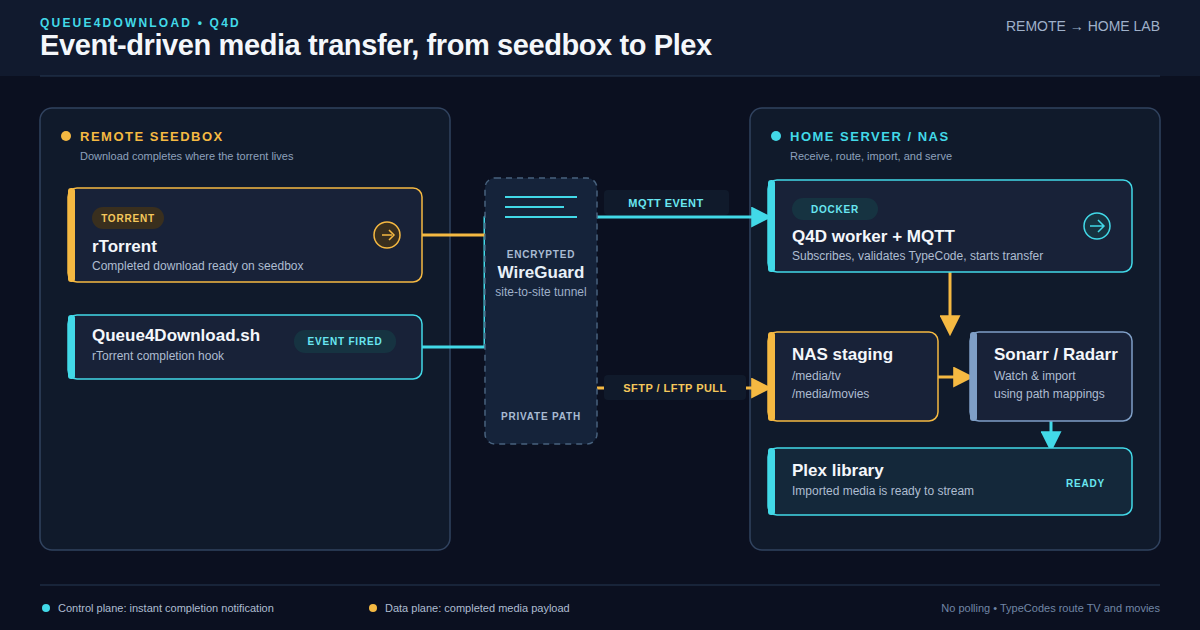
The core idea is event-driven transfer: instead of polling the seedbox on a schedule to see what’s done, your torrent client fires a notification the instant a download completes. Q4D hears that notification and immediately starts pulling the file home. No delay, no polling overhead, no missed transfers.
It does this using MQTT — a lightweight publish/subscribe messaging protocol that’s dead simple and works reliably over a WireGuard tunnel.
How It Works
Here’s the full flow from torrent completion to Plex:
- rTorrent on the seedbox finishes a download
- rTorrent fires a completion hook — a script called
Queue4Download.shthat ships with Q4D - That script publishes an MQTT message over the WireGuard tunnel to your home network
- The Q4D Docker container on your home server is subscribed to that MQTT broker and receives the event
- Q4D uses LFTP over SFTP to mirror the completed file from the seedbox to your local download directory
- Sonarr or Radarr, which are watching that directory, detect the new file and import it
The whole thing from “torrent finished” to “file is on your NAS” typically takes a few minutes depending on file size and your WireGuard tunnel bandwidth.
What You Need
Before you start:
- A seedbox running rTorrent (swizzin is a common choice)
- A home server running Docker — Unraid, TrueNAS SCALE, OpenMediaVault, Proxmox, a plain Linux box, whatever. If it can run Docker containers, it works.
- A WireGuard site-to-site VPN between your seedbox and home network (Q4D’s SFTP and MQTT traffic runs through this)
- Basic comfort with Docker and editing config files
Part 1: Seedbox Setup
Install Q4D on the Seedbox
SSH into your seedbox and grab the Q4D scripts from GitHub:
cd ~
git clone https://github.com/sbtech-community/Q4D ~/.Q4D
The key file here is Queue4Download.sh. This is the script rTorrent calls when a torrent completes.
Configure the MQTT Publisher
Open ~/.Q4D/Queue4Download.sh and set your MQTT broker address. This should be the WireGuard IP of your home server (not the LAN IP — the WG tunnel IP):
MQTT_HOST="172.16.x.x"   # Your Unraid WireGuard IP
MQTT_PORT="1883"
The script uses mosquitto_pub to publish the MQTT message. If your seedbox doesn’t have mosquitto installed, Q4D ships with a compiled static binary you can use instead. Check the repo for the prebuilt binary option — it’s in the releases section and works on Debian/Ubuntu-based seedboxes without any dependencies.
Add the rTorrent Hook
Q4D fires via a completion event hook in rTorrent. Open your .rtorrent.rc and add:
method.set_key = event.download.finished,queue4download,"execute.nothrow=~/.Q4D/Queue4Download.sh,$d.name=,$d.base_path=,$d.custom1="
This tells rTorrent: when any download finishes, call Queue4Download.sh with the torrent name, base path, and label (custom1). The label is important — Q4D uses it to decide where to put the file on your NAS.
Set TypeCodes (Labels)
Q4D uses what it calls TypeCodes to route files to the right destination. The label you set in rTorrent when adding a torrent determines where it ends up on Unraid.
Common TypeCodes:
T— TV shows → routes to your TV download directoryM— Movies → routes to your movie download directory
So when Sonarr adds a torrent to your seedbox, it labels it T. When Radarr adds one, it labels it M. Q4D sees the label, pulls the file, and drops it in the right place for Sonarr or Radarr to import.
You configure the TypeCode mappings in the Q4D Docker container on your home server.
Part 2: Docker Setup (Home Server)
Pull the Q4D Container
How you deploy this depends on your platform — Unraid’s Docker tab, Portainer, a compose file, or just a plain docker run. The setup is the same regardless. You need:
- Image:
q4d/q4d:latest(check the GitHub repo for the current image name) - Network type: Bridge
- Port: Map
1883(host) →1883(container) — this is the MQTT broker
Container Paths
Map your download directories into the container. The host paths will vary depending on your setup — adjust them to wherever your NAS or server stores incoming media:
| Container Path | Host Path | Purpose |
|---|---|---|
| `/media/tv` | `/your/downloads/tv` | TV download landing zone |
| `/media/movies` | `/your/downloads/movies` | Movie download landing zone |
| `/config` | `/your/appdata/q4d` | Q4D config and logs |
On Unraid these would typically be under /mnt/user/. On TrueNAS SCALE or a plain Linux box they’ll be wherever you’ve mounted your storage.
Configure Q4D
In the Q4D config (in your /config directory), set up:
SFTP_HOST=172.16.x.x        # Seedbox WireGuard IP
SFTP_USER=yourseedboxuser
SFTP_KEY=/config/id_ed25519  # SSH key for auth (see below)

TYPECODE_T=/media/tv
TYPECODE_M=/media/movies
Also run the q4d-monitor container alongside q4d — it provides a web UI to see transfer status and history.
Part 3: SSH Key Authentication
This is where most people get tripped up. Q4D uses LFTP over SFTP to pull files from the seedbox. LFTP needs to authenticate, and you want it to use SSH key auth — not password auth.
Generate a Key Inside the Container
First, get a shell inside the Q4D container:
docker exec -it q4d bash
Generate an ed25519 key:
ssh-keygen -t ed25519 -f /config/id_ed25519 -N ""
cat /config/id_ed25519.pub
Copy that public key.
Add the Key to Your Seedbox
SSH into your seedbox and add the public key to authorized_keys:
echo "ssh-ed25519 AAAA... your-key-here" >> ~/.ssh/authorized_keys
chmod 600 ~/.ssh/authorized_keys
Test It
From inside the Q4D container, verify the connection works:
lftp -u yourseedboxuser, sftp://172.16.x.x
If it connects without asking for a password, you’re good.
Why this matters: If your seedbox was previously set up with password auth and you later harden SSH (which you should — password auth over the internet is bad), Q4D will silently break. File transfers just stop. No obvious error unless you’re watching logs. Always use key auth from the start.
Part 4: Connecting Sonarr and Radarr
Once Q4D is dropping files in your download directories, Sonarr and Radarr need to be told about it.
Remote Path Mappings
This is the step that trips people up most. Your torrent client (rTorrent) reports file paths on the seedbox. Sonarr and Radarr need to know how to translate those seedbox paths to the local paths where Q4D dropped the files.
In both Sonarr and Radarr, go to Settings → Download Clients → your rTorrent client → Remote Path Mappings:
Host: your-seedbox-hostname
Remote Path: /home/yourusername/    (or wherever rTorrent stores active downloads)
Local Path: /downloads/tv/          (or wherever Q4D dropped it)
You may need two mappings — one for the active download path and one for the completed/seeding path. rTorrent reports whichever path the file is in at the time of the import event.
One heads-up: Radarr sanitizes usernames in log output. If you see /home/(removed)/... in Radarr logs and try to use that as your remote path, it won’t work. Check the actual filesystem path on your seedbox and use that.
Known Gotchas
WireGuard tunnel goes down. If the WG tunnel between your seedbox and home network drops, MQTT events stop arriving. Downloads pile up on the seedbox and nothing syncs. Q4D doesn’t queue up missed events — when the tunnel comes back, you may need to manually retrigger transfers for anything that completed while the tunnel was down. Some routers (including the UniFi Dream Machine Pro) don’t auto-restart non-default WireGuard interfaces on reboot — worth checking your router config.
Container needs restart after tunnel reconnect. On bridge-networked Docker containers, if the WG tunnel drops and comes back, the container’s routing can get confused. If transfers mysteriously stop working after a tunnel blip, restart the Q4D container first.
SSH hardening breaks LFTP. Covered above but worth repeating: if you disable password auth on your seedbox after Q4D is already set up, LFTP breaks. Set up key auth before you harden SSH, or fix it immediately after.
TypeCodes are case sensitive. T and t are different. Make sure the labels Sonarr and Radarr set on torrents match exactly what you’ve configured in Q4D.
Mosquitto binary on newer Debian. If your seedbox is on a newer Debian/Ubuntu and you’re having trouble with the mosquitto_pub binary included with Q4D, check the repo’s releases section — there are updated static binaries.
The End Result
When it’s all working, the experience is pretty satisfying. Someone requests a show through Seerr, Sonarr picks it up, the seedbox grabs it, and within a few minutes of the download finishing the file is on your NAS and Sonarr is importing it. You don’t touch anything.
Q4D is a small piece of the puzzle but it’s a critical one. Without it you’re either manually copying files or running some polling script that checks the seedbox every few minutes. Neither is great. The event-driven approach Q4D uses is the right way to do it.
This is part of an ongoing series on self-hosted media infrastructure. Previous post: How I Fixed My Broken Media Pipeline and Built a Monitoring Stack in One Day